





















Table of Contents
Categories
Share it now!

Most Popular


Read summarized version with
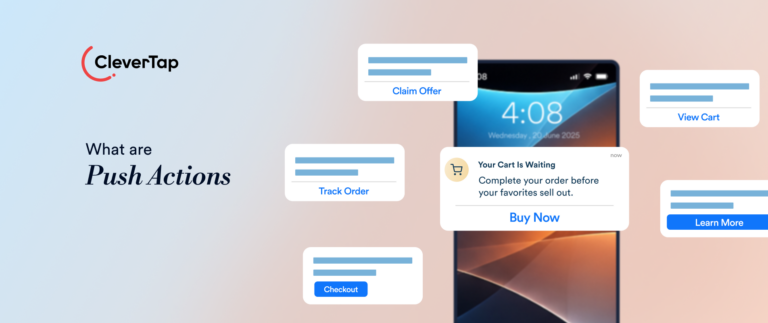
Most push notifications ask customers to open an app before they can take the next step. Push actions shorten that path by adding interactive options such as Reorder, Confirm, View Details, or Remind Me Later directly to the notification.
Depending on the action and how the app is configured, selecting a button can open a specific screen or trigger a supported response without requiring the customer to navigate through the app first. This can reduce friction while giving marketers a clearer signal about what the customer chose to do.
This guide explains how push actions work, the different types marketers can use, where they fit across the customer lifecycle, and how to design and measure them effectively.
What Are Push Actions?
Push actions are interactive controls added to a push notification that allow customers to choose a predefined response directly from the notification interface. Depending on the operating system, app configuration, and action type, selecting an action may open a specific screen in the app or trigger supported application logic in the background.
For example, an ecommerce notification might offer View Cart and Save for Later, while a delivery notification might offer Track Order or Confirm Receipt.
Unlike a standard notification tap, which follows the notification’s primary destination, each action represents a specific response. This gives customers a more direct path to the next step while giving marketers a clearer signal about what they chose to do.
Push Action vs. Notification Tap
Tapping the body of a push notification typically opens the app or takes the customer to the primary destination configured for that notification.
A push action gives the customer additional predefined choices. For example, instead of only opening a cart-abandonment notification, a customer might choose Checkout Now or Save for Later.
The distinction is therefore not simply interest versus intent. A standard tap follows the notification’s primary path, while an action button captures a more specific response.
Push Action vs. Deep Link
A push action defines what the customer can choose to do, while a deep link defines where the customer is taken after an interaction.
The two often work together. For example, a View Order action could use a deep link to open the relevant order screen, while another supported action might trigger application logic without requiring the customer to navigate there manually.
The exact behavior depends on the operating system and how the action is implemented within the app.
How Push Actions Work
Understanding how push actions function requires looking at the end-to-end journey from the moment a message leaves the server to the final user interaction. When structured correctly, this multi-step flow removes unnecessary steps, allowing users to complete actions in seconds.
Notification Delivery
You build the notification in your engagement platform, including the message, any image, and the action buttons. The platform sends it through Apple Push Notification Service (APNs) for iOS or Firebase Cloud Messaging (FCM) for Android. The device then displays the notification, and customers usually see the buttons when they expand it.
Customer Interaction
Customers can respond in three ways:
- Tap the Notification Body: opens the app, usually on a screen set by a deep link
- Tap an Action Button: triggers the response tied to that button
- Dismiss the Notification: clears it, and most setups don’t count this as an interaction
Destination or Response
Each button is set up to do one of two things:
- Foreground Action: opens the app on a specific screen, such as checkout or a preference center
- Background Action: completes the task without showing the app, such as confirming a delivery or snoozing a reminder
Background actions need support in the app’s code, so check with your developers what each platform allows.
Follow-Up Experience
What happens next depends on how the app handles the selected action. Foreground actions should take customers to the intended screen, while background actions should provide confirmation when appropriate. Action selections can also be tracked through the app’s notification-handling setup, helping marketers measure engagement and trigger relevant follow-ups.
Common Types of Push Actions
Group actions by what the customer is trying to do, not by what the platform allows. That keeps each button tied to a goal and makes it easier to choose the right one for a campaign.
View or Continue
These actions take customers to something specific so they can pick up where they stopped.
- View Details: Opens an item, an order, or an account update
- Resume Activity: Returns customers to an unfinished form, onboarding step, or paused video
Buy, Book, or Renew
These actions shorten the route to a transaction.
- Complete Purchase: Takes customers to a saved item or an abandoned cart
- Reserve or Book: Opens the relevant booking or reservation flow.
- Renew Subscription: Takes customers to the subscription renewal or confirmation screen.
Confirm or Approve
Use these when you need a clear yes from the customer.
- Approve Transaction: Verifies a transfer or a login attempt
- Confirm Delivery: Acknowledges that an order or handoff went through
Sensitive approvals often require the customer to unlock their device or verify their identity first, so plan for that extra step.
Save, Claim, or Add
These actions let customers keep something for later without breaking what they’re doing.
- Save to Wishlist: Bookmark an item or a price drop
- Claim Reward: Applies an offer or loyalty points to the account
- Add to Wallet: Stores a boarding pass, ticket, or gift card in the phone’s wallet
Reply or Remind Me Later
Customers aren’t always free when a message arrives. These actions let them answer quickly or come back to it.
- Quick Reply: Let customers type a short response from the notification
- Remind Me Later: Defers the message to a time that suits them
Dismiss or Manage Preferences
These actions give customers control over what they receive.
- Dismiss Reminder: Clears or closes a reminder through a configured action, where supported
- Manage Preferences: Opens notification settings so customers can reduce frequency or mute a topic
Push Action Examples Across the Customer Lifecycle
Push actions are most effective when tailored to specific moments in the customer journey. By providing targeted choices directly on the lock screen, growth marketers can reduce friction, drive faster conversions, and increase long-term retention across key lifecycle stages.
Complete Onboarding
Sample Notification: “You’re one step away from unlocking your account. Finish ID verification to start investing.” [Verify Now] [Remind Me Later]
A new fintech user downloads the app but stops before verifying their identity. Verify Now opens the verification flow while their interest is still fresh. Remind Me Later helps people who don’t have their ID at that moment, because it lets them postpone the task instead of ignoring the message or muting your notifications.
Recover an Abandoned Cart
Sample Notification: “Your wool coat is still in your cart. Ready to check out?” [Checkout Now] [Save for Later]
A shopper adds a coat to their cart and leaves before paying, so Checkout Now skips the browsing and drops them straight into the cart. The Save for Later button suits shoppers who aren’t ready to buy, and the tap tells you the item still interests them, which gives you a signal for a price-drop message later.
Reorder a Product
Sample Notification: “Running low on espresso beans? Reorder in one tap.” [Reorder] [Edit Order]
A grocery or food delivery customer is due to replenish something they buy regularly. Reorder repeats their last order, and Edit Order covers the customer who wants to change the quantity first. Most teams send the Reorder tap to a confirmation screen rather than charging a card silently, which keeps the customer in control of what they spend.
Confirm a Booking or Delivery
Sample Notification: “Your driver has arrived. Where should we leave your order?” [Leave at Door] [Hand to Me]
A courier is outside and needs an instruction on what to do, and the two buttons answer the only question that matters right now, so the customer doesn’t have to open the app or take a phone call. This works as a service message rather than a promotion, which is why it needs to be fast and unambiguous.
Approve a Financial Action
Sample Notification: “Unrecognized card activity detected. Review your recent transaction.” [Review Transaction] [Secure Account]
A banking app detects a potentially suspicious transaction and prompts the customer to review it. Review Transaction opens the transaction details, while Secure Account directs the customer to the relevant security controls. Sensitive actions, such as approving transactions or blocking cards, should require appropriate authentication. This gives customers a quick route to act without exposing sensitive account controls through an unsecured notification.
Claim a Loyalty Reward
Sample Notification: “You’ve earned a free drink. Claim it before the end of the month.” [Claim Reward] [View Balance]
A coffee app member reaches a new loyalty tier, and they can claim a new reward, so the Claim Reward adds the voucher to their account so it’s ready at the next visit. View Balance serves the customer who wants to check their points first, and it keeps that curiosity inside your app rather than leaving the notification unanswered.
Renew a Subscription
Sample Notification: “Your premium plan ends in 3 days. Renew to keep your access.” [Renew Plan] [Change Plan]
A streaming or SaaS subscriber is close to the end of their plan. Renew Plan opens the renewal screen with their current plan selected, so they confirm rather than start over. Change Plan gives a route to customers who are unsure, so a downgrade becomes an option before cancellation does.
Return to a Game or Content Experience
Sample Notification: “Your energy is full, and today’s challenge is live.” [Play Challenge] [Claim Daily Bonus]
A mobile game player has been away since their energy ran out, and both buttons open the game in the right place, which skips the main menu. The bonus button gives a second, lighter reason to return, and you can compare how many sessions follow each tap.
Best Practices for Designing Push Actions
Not every notification needs buttons, and adding them everywhere crowds the message and asks customers to make decisions they didn’t come for. These principles help you decide when to add actions and how to design them.
1. Start With the Customer’s Goal
Before you add a button, ask whether it saves the customer time or not. Actions suit tasks that are routine, urgent, or tied to a clear next step, such as confirming a delivery or renewing a plan. A weekly digest or a general announcement has no immediate task, so buttons there only add noise. The most common pitfall is adding actions because the feature exists, not because the customer needs them.
2. Match Actions to Customer Intent
Think about what the customer is likely to want at that moment. In an abandoned cart message, a buying option paired with a softer one such as Save for Later respects shoppers who are still deciding.
Forcing one high-commitment choice on someone who is still browsing invites a dismissal. Service messages follow the same logic. A flight delay alert should help with the delay, and a Shop Deals button next to it can erode trust at a stressful moment.
3. Use Clear Action Labels
A label should say exactly what happens next, such as “Track Order,” “Confirm Booking,” and “Remind Me in 1 Hour,” which work well, as they are short and sweet.
They are also less likely to be cut off on smaller screens. Vague labels like Click Here, OK, and Maybe Later leave customers guessing. Use “Remind Me Later” only when the action actually schedules a reminder.
4. Keep Choices Focused
Android displays up to three buttons, and every extra option slows the decision you’re trying to speed up. More buttons also split taps across more outcomes, which makes your results harder to read. If you want a fourth option, the message probably needs to be two messages, or the extra choice belongs inside the app.
5. Test Action Visibility Across Devices
Action buttons do not appear identically across devices and operating systems. Customers may need to expand a notification to see them, and some actions require additional app-level configuration. Test visibility, button behavior, and the fallback experience across supported devices so customers can still complete the intended task when an action is unavailable.
6. Deliver a Consistent Post-Action Experience
A button makes a promise, and the next screen has to keep it, and if Checkout Now lands on the home screen, or the customer has to log in and search for the item, the shortcut becomes a detour.
Deep link each foreground action to the exact screen the label implies, and ensure background actions confirm that they worked. Test the full flow on both iOS and Android, since behavior differs between them.
7. Test and Optimize
Run A/B tests on button labels, the number of buttons, and their order. You should try to include a control group that receives the same notification without actions so you can see whether the buttons help at all.
Judge results by what happens after the tap, such as completed purchases and repeat visits, rather than by tap rate alone. A button that earns plenty of taps but also pushes up opt-outs is costing you more than it brings.
How to Measure Push Action Performance
Taps alone don’t tell you whether an action helped. A button can earn plenty of clicks and still do nothing for the outcome you wanted. These five metrics show what happens after the tap.
Action Selection Rate
This is the share of delivered notifications where customers tapped an action button, as opposed to the notification body or nothing at all. Compare it by button and by position. A low rate on one button often means the label doesn’t match what customers want at that moment.
Action Completion Rate
This is the share of action taps that finished the task the button promised. A gap between selections and completions usually points to a broken deep link, a slow background process, or an unexpected login or unlock step.
Conversion Rate
This is the share of customers who reach the goal after tapping, such as placing an order, renewing a plan, or verifying an account. Compare conversion rates against a randomly assigned group that receives the same notification without action buttons. This helps isolate the incremental impact of adding push actions rather than attributing every post-click conversion to the buttons themselves.
Repeat Engagement
Check whether customers who used an action come back more often over the following weeks, such as a 30-day window, than customers who received a standard notification. Choose the window to match your product’s usage cycle.
Opt-Out and Uninstall Rate
Watch for rises in push opt-outs or uninstalls after an action campaign. If they climb, the buttons may be creating pressure rather than convenience, and the campaign needs a rethink.
Create Actionable Push Experiences With CleverTap
CleverTap is an all-in-one customer engagement platform that helps businesses create, personalize, automate, and optimize push notification campaigns across the customer lifecycle. Powered by TesseractDB™ and CleverAI™, the platform combines real-time customer data, behavioral insights, and AI-driven optimization to help marketers deliver relevant notifications that encourage meaningful customer actions.
From recovering abandoned carts to driving repeat purchases and subscription renewals, CleverTap enables businesses to connect actionable push notifications with personalized customer journeys and measurable outcomes.
Here is how CleverTap supports more effective push notification campaigns:
- Actionable Push Notifications: Configure interactive action buttons that allow customers to respond to notifications without navigating through multiple app screens. For example, an e-commerce brand can include View Cart and Shop Now buttons in an abandoned cart notification, directing customers to the relevant destination through deep links. CleverTap supports configurable action buttons on Android, with the available options depending on the notification template and implementation.
- Rich and Personalized Push Notifications: Create visually engaging notifications using images, rich media, and customizable layouts. CleverTap supports dynamic personalization of notification text, media, deep links, and button labels using customer attributes and event data. This allows marketers to tailor experiences around recently viewed products, abandoned carts, and individual preferences.
- RenderMax™ for Improved Push Visibility: CleverTap’s RenderMax™ technology helps improve Android push notification render rates, particularly on devices where battery optimization and manufacturer restrictions can prevent notifications from appearing. It combines the RenderMax Push SDK, pull notifications, and OEM partnerships to improve notification reach. By addressing delivery and rendering challenges, RenderMax™ helps more customers see timely messages and the actions available within them.
- Real-Time Behavioral Segmentation With TesseractDB™: CleverTap’s TesseractDB™ powers unified customer profiles and real-time behavioral insights, helping marketers target notifications using customer activity, purchase history, engagement patterns, and lifecycle stage. For example, brands can identify customers who recently abandoned high-value carts or are approaching subscription expiration and deliver notifications with relevant next steps.
- CleverAI™ for Intelligent Push Optimization: CleverAI™ helps marketers optimize when, where, and how customers receive engagement messages. IntelliTime analyzes engagement patterns to identify effective delivery times, while IntelliChannel helps select channels based on customer preferences and engagement behavior. IntelliNODE enables teams to experiment with different journey paths, helping optimize follow-up communication and conversions.
- Real-Time Event-Triggered Campaigns: Automatically trigger notifications when customers complete or abandon specific activities, such as leaving items in their carts, starting onboarding, or reaching subscription milestones. Marketers can combine these triggers with personalized action buttons to encourage customers to complete the next step while the interaction remains relevant.
- Deep Linking and Contextual Experiences: Configure deep links that take customers directly to the screens associated with their selected actions. A Checkout Now button can open the relevant cart, while a Renew Plan button can direct customers to their subscription details. Dynamic deep links can also incorporate customer or event attributes to create more contextual experiences.
- Omnichannel Journey Orchestration: Integrate actionable push notifications into automated journeys spanning push, in-app messages, email, SMS, and WhatsApp. CleverTap allows marketers to configure journey branches and exits based on customer behavior, ensuring customers who complete an action receive appropriate follow-ups instead of unnecessary reminders.
- A/B Testing and AI-Assisted Experimentation: Test notification content, button configurations, and campaign variations to understand which approaches improve engagement. CleverTap’s IntelliNODE also supports experimentation across different journey paths, channels, and message variations to identify approaches that improve goal conversions.
- Campaign and Journey Analytics: Monitor notification impressions, clicks, conversions, and downstream customer behavior to evaluate performance. CleverTap can also track the selected action-button name through the wzrk_c2a property of supported notification-click events. This helps teams analyze which actions attract engagement and how those interactions contribute to broader campaign objectives.
By bringing together actionable notifications, AI-powered optimization, reliable push rendering, and customer journey analytics, CleverTap helps brands make push notifications more relevant, accessible, and effective throughout the customer lifecycle.
Want to turn push notifications into meaningful customer actions? Discover how CleverTap helps deliver personalized, actionable push experiences at scale
Conclusion
Push actions give customers a quicker way to respond and give you a clearer view of what they want. The best ones solve a real need, use plain labels, and lead to the screen or outcome the button promised. When you design them with that care, notifications become more useful to the customer, and that usefulness supports engagement, conversion, and retention. Start with one campaign, test it against a version without buttons, and let the results guide where you add actions next.

Kiran Pius 
Leads Product Launches, Adoption, & Evangelism.Expert in cross-channel marketing strategies & platforms.
Free Customer Engagement Guides
Join our newsletter for actionable tips and proven strategies to grow your business and engage your customers.